Building a Mac help book from Markdown
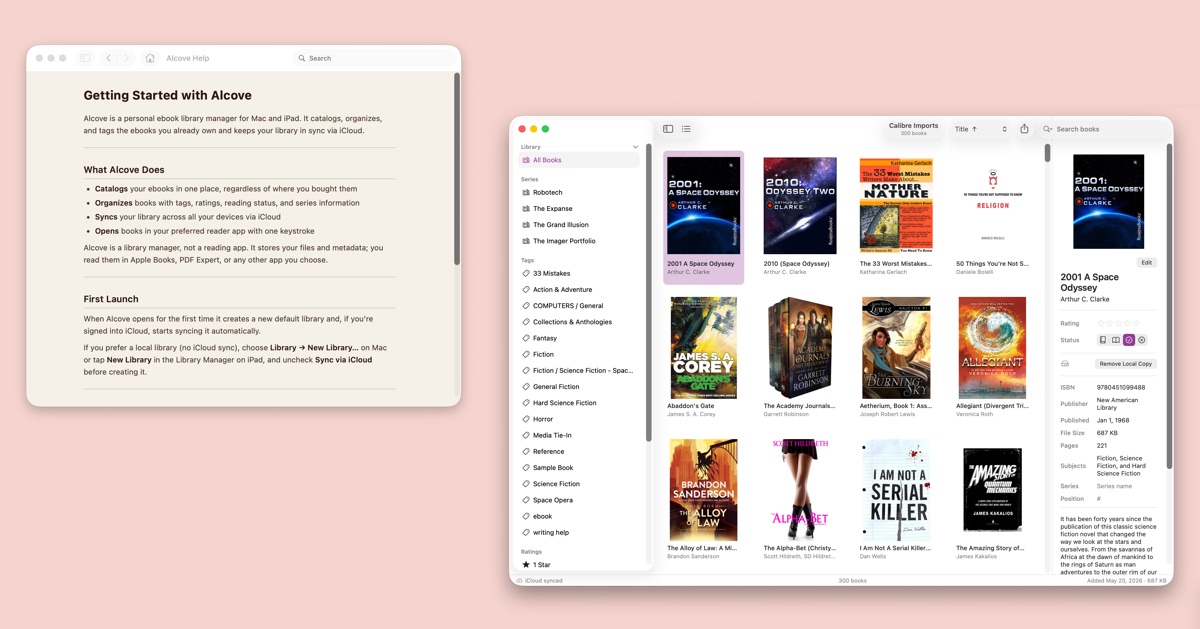
I needed help documentation for Alcove, and I wanted two things out of it: a working Help menu in the app, and a website people could find from a search engine. What I did not want was to write everything twice and watch the two copies drift apart.
So the content is one set of Markdown files, and two toolchains read it:
1
2
help/en/*.md  ──── pandoc ────► MyApp.help (bundled in the app)
              └─── MkDocs ────► a static site
Neither half of that is hard. The parts that cost me time were the Apple-specific ones, because help books are barely documented anywhere and most of what you find by searching is a decade out of date. This is what I’d want to have read first.
The tools
Four of them, and only two need installing:
- pandoc converts each Markdown page into the HTML that goes in the bundle.
brew install pandoc. If you don’t have Homebrew, it’s at pandoc.org as a signed installer package. - hiutil builds the help book’s search index. It ships with macOS at
/usr/bin/hiutil, so there’s nothing to install. There is also no man page worth reading;hiutil --helpis what you get. - Lua you do not install. pandoc embeds a Lua interpreter, and a “Lua filter” is just a file you hand it with
--lua-filter. If you’ve never written Lua, the two functions below are about as much as you’ll need. - MkDocs with the Material theme builds the website half.
pip install mkdocs mkdocs-material, orpipx install mkdocsif you’d rather keep it out of your system Python. Skip it entirely if you only want the in-app help.
The only hard dependency for the app itself is pandoc, and it has to be on every machine that builds the Mac target – including CI.
What a help book actually is
It’s a bundle – MyApp.help – that sits in your app’s Resources. Inside is a Contents/Info.plist and an en.lproj directory of plain HTML files, plus a search index. helpd serves it when the user picks something from the Help menu. There’s no framework and no API to call. If you can produce HTML, you can produce a help book.
The Info.plist keys that matter:
1
2
3
<key>HPDBookAccessPath</key>      <string>index.html</string>
<key>HPDBookIndexPath</key>       <string>MyApp.helpindex</string>
<key>HPDBookType</key>            <string>3</string>
Add the built bundle to Copy Bundle Resources as a folder reference – the blue folder icon, not a yellow group. A group flattens the directory structure and you get a bundle full of loose files that helpd won’t read.
Markdown to HTML with pandoc
One pandoc invocation per page, with a template and a filter:
1
2
3
4
5
pandoc en/sync.md \
  --template=templates/help.html \
  --lua-filter=templates/md-to-html.lua \
  --metadata title="iCloud Sync" \
  --output=output/MyApp.help/Contents/Resources/en.lproj/sync.html
The template is an ordinary HTML document with $title$ and $body$ substitutions and all the CSS inlined. Inline it – the bundle is loaded from a file:// context and an external stylesheet is one more path to get wrong for no benefit.
The title comes from the page’s own # Heading, pulled out in the shell rather than duplicated in front matter:
1
title=$(grep -m1 '^# ' "$page.md" | sed 's/^# //')
The Lua filter exists because of a conflict between the two outputs. In the source I write [Multiple Libraries](libraries.md), because MkDocs handles .md links natively and the raw Markdown stays valid. The bundle needs .html. So:
1
2
3
4
5
6
7
8
9
function Link(el)
    el.target = string.gsub(el.target, "%.md$",  ".html")
    el.target = string.gsub(el.target, "%.md#",  ".html#")
    return el
end

function Image(_)
    return {}
end
The second pattern is for links with anchors. Lua escapes with %, not a backslash, which is worth knowing before you spend twenty minutes on a pattern that silently matches nothing.
Image returning an empty table drops every Markdown image from the bundle. Screenshots would bloat the app for no reason – people reading in-app help are already looking at the app. They stay on the website, where they’re useful to someone deciding whether to download it.
That leads to an asymmetry worth knowing: pandoc filters see Markdown images, not raw HTML. An <img> tag written directly in the Markdown passes straight through to both outputs. I use that deliberately for a table of sync-status icons that has to appear in both, and it also means a stray <img> won’t be stripped the way you’d expect.
The search index will waste your afternoon
hiutil builds the index, and it has two formats. Get this one wrong and nothing tells you:
1
/usr/bin/hiutil -I lsm -Caf "$out_dir/MyApp.helpindex" -m 3 -s en "$out_dir/"
The other option is -I corespotlight, which writes a .cshelpindex and pairs with HPDBookCSIndexPath. Every modern-looking example uses it. It did not work for me, and the reason is that the CoreSpotlight format only lights up once the system’s Spotlight service has independently imported your help bundle. A debug build running out of DerivedData never gets imported, because DerivedData is excluded from Spotlight. So it works for some people, on some builds, some of the time.
LSM is the old format and it is self-contained. helpd reads it directly with no Spotlight involvement, which means it works on a debug build, in a clean checkout, on a coworker’s machine. BBEdit ships an LSM index, which is what convinced me I wasn’t doing something stupid.
Reference hiutil by absolute path. Xcode’s build environment has its own ideas about PATH.
The Xcode build phase
A Run Script phase, placed above Copy Bundle Resources, regenerates the help book during normal builds.
Two things about it. First, uncheck “Based on dependency analysis” – otherwise Xcode decides nothing changed and skips the phase, and you debug stale HTML. Let the script do its own staleness check:
1
2
3
4
[ ! -f "$html" ]                    && return 0   # missing
[ "$TEMPLATE"     -nt "$html" ]     && return 0   # template newer
[ "$LINK_FILTER"  -nt "$html" ]     && return 0   # filter newer
[ "$src/$page.md" -nt "$html" ]     && return 0   # source newer
Rebuild everything when any of those trip. pandoc is fast and per-file dependency tracking isn’t worth the code.
Second, and this one is genuinely maddening: Xcode launched from Finder inherits a minimal PATH with no Homebrew in it, while Xcode launched from a terminal inherits yours. So the build works for you and fails for the person who double-clicks the project. Probe for the tool yourself:
1
2
3
4
5
for dir in /opt/homebrew/bin /usr/local/bin "$HOME/.local/bin"; do
    [ -x "$dir/pandoc" ] && PATH="$dir:$PATH" && break
done
command -v pandoc >/dev/null || {
    echo "error: pandoc not found. brew install pandoc" >&2; exit 1; }
Emit a real error with the install command in it. Someone else is going to hit this on a fresh machine and it should tell them what to do.
The website half
MkDocs with the Material theme, pointed at the same Markdown, and it mostly just works. Two traps.
extra_css paths resolve relative to docs_dir, not to the config file. If docs_dir: en and you write extra_css: [css/site.css], MkDocs looks for en/css/site.css. When that doesn’t exist it emits the <link> tag anyway and copies nothing, with no warning at any log level. Your site is live, styled in stock theme colors, and looks fine enough that nobody mentions it. Mine ran that way for weeks. Anything the site loads has to live inside docs_dir.
The other one isn’t MkDocs’ fault: rsync -a src/ dest/ creates the last path component but not missing parents. Copy assets into a build directory that doesn’t exist yet and the build dies – but only on a fresh clone or a new worktree, because your own tree already has the directory from an earlier build. mkdir -p first.
What I’d tell someone starting
Put every build step in a Makefile from the beginning, and never invoke pandoc by hand. Both my paths use identical flags because they both come from the same place, and the one time I ran pandoc directly I got a bundle where every cross-page link 404’d in the in-app browser, because I’d forgotten the filter.
Check the generated screenshots into the repo. They only change when the UI does, and nobody needs a simulator booted to build your app.
And write the source as valid Markdown that reads fine in a text editor. Every time I was tempted to reach for a custom syntax extension, a blockquote with a bold label in front of it did the job, in both outputs, with no extension to install.